Read trends on your machine.
You can change the range and export the heartbeats. Audit and the raw record are not on this login.
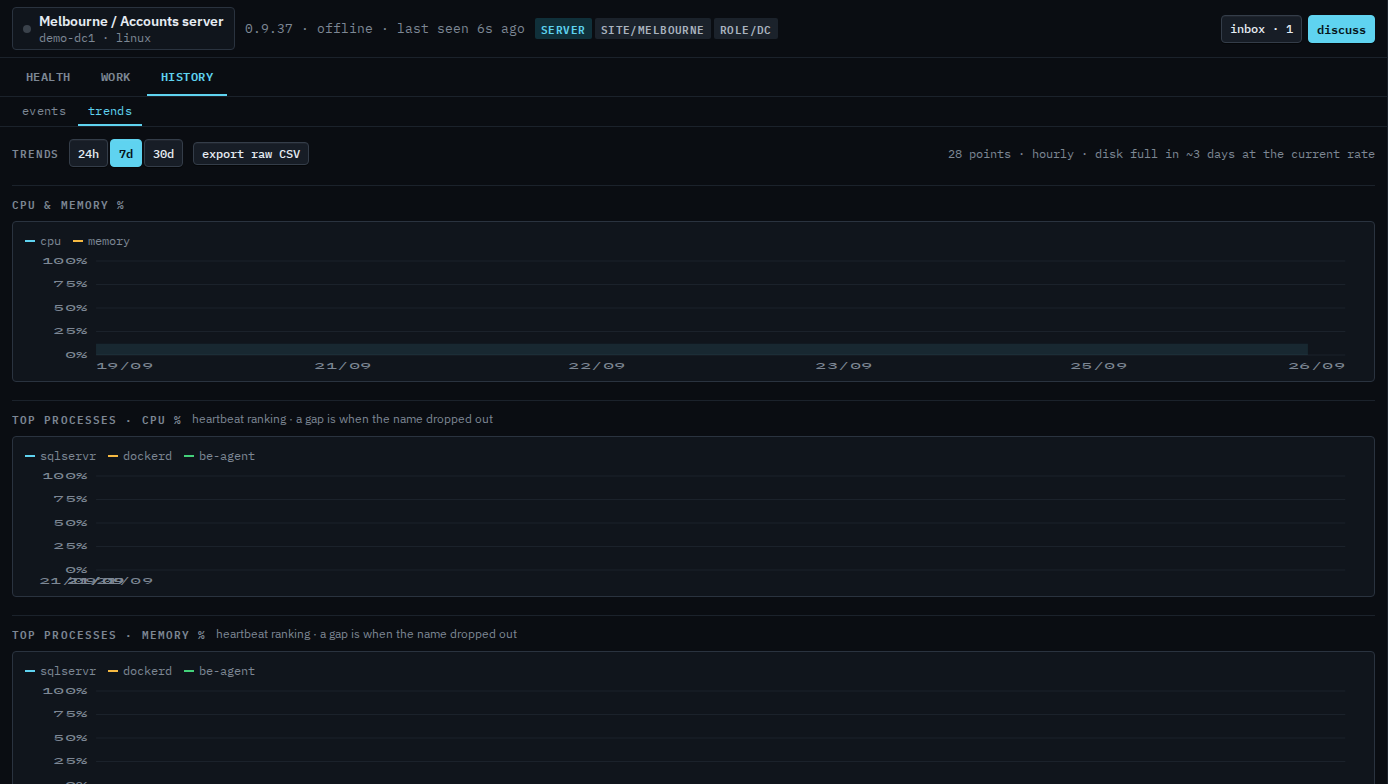
Open History › trends
Open Accounts server, then history › trends, and press 7d. History's tabs are events and trends. The line reads 28 points · hourly · disk full in ~3 days at the current rate. The charts are CPU and memory, top processes by CPU and by memory (sqlservr, dockerd, and be-agent, from the one heartbeat), the worst disk, and network in and out. Export raw CSV is every heartbeat the hub still has, not the rolled-up chart. 24h and 30d are the other ranges. This shot stays on 7 days. It does not export.
The same numbers as rows are Read heartbeats on your machine. What your provider sees, including audit, is Read a machine's trends. The disk that is filling is also on Read your dashboard.