Open or close every fleet group.
Fleet, on the list. Needs attention and Onboarding stay open on their own. The link on the bar opens and closes the site and role headings.
Site groups start closed
Open Fleet and keep the view on list, grouped by group. Needs attention is open: Accounts server is there because the disk is at 92%. Onboarding is open: Spare laptop has no group yet. The site and role headings start closed, so Melbourne, Branch and the roles are not in the list. The link on the bar says expand all.
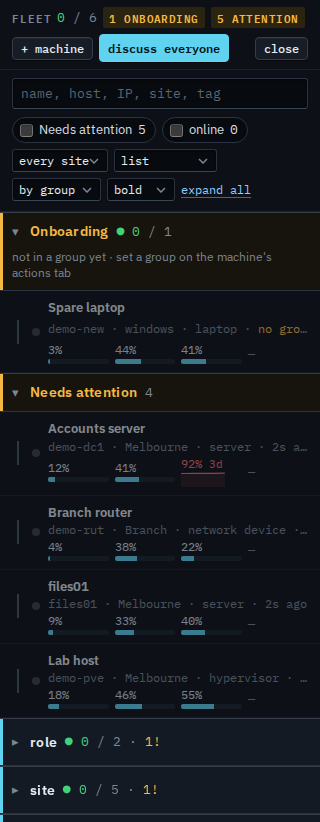
Press expand all
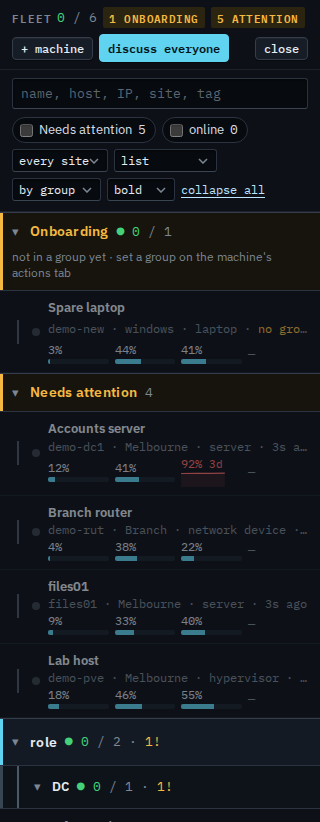
Press expand all. Site opens: Melbourne holds Accounts server, files01, Lab host and Reception PC, and Branch holds Branch router. Role opens too: DC is Accounts server, hypervisor is Lab host. The link now says collapse all. Press that and the site and role headings close again. Needs attention and Onboarding stay as they were. Click one heading when you only want that group.
List, cards and exceptions are Choose how the fleet is drawn. How the headings look is Change how groups are drawn. One site only is Focus the fleet on one site. A machine with no group yet is See a machine that is not in a group.