Limit an alert rule to hypervisors.
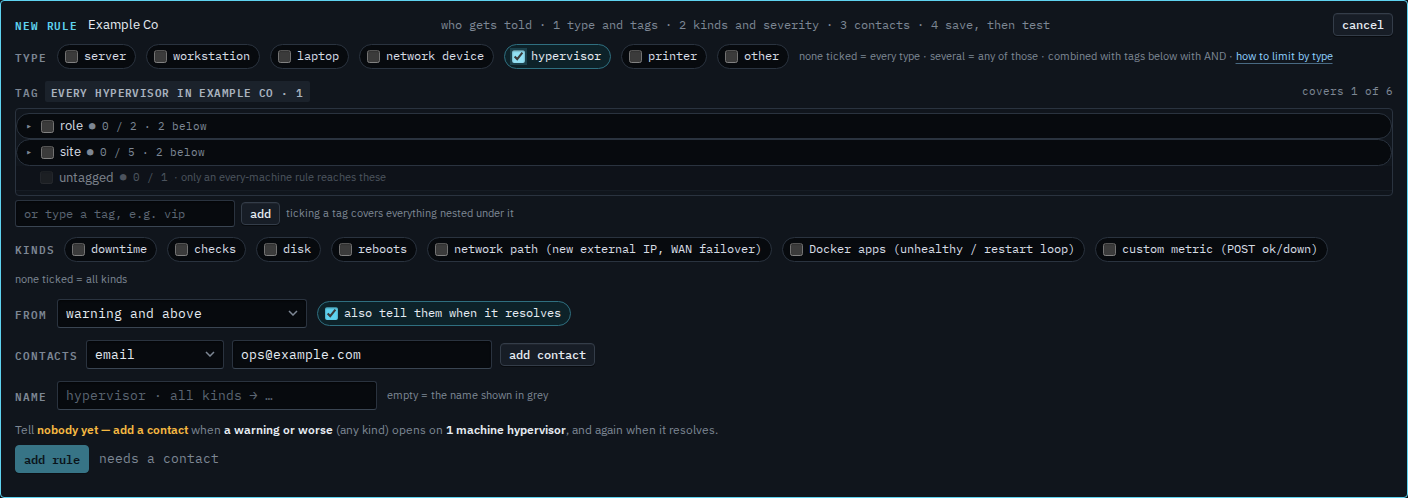
Alerts › rules. Type sits at the top of a new rule. Hypervisor is one tick, next to network device.
Tick hypervisor
Open Alerts › rules and press + rule. Under type, tick hypervisor. Leave the others clear. The chip says every hypervisor in Example Co, and the line says it covers 1 of 6. Lab host is the hypervisor. files01 is a server, even though it runs as a guest on Lab host, so it stays off, along with Accounts server, Reception PC, Branch router and Spare laptop. None ticked still means every type. The address is typed and not added yet.
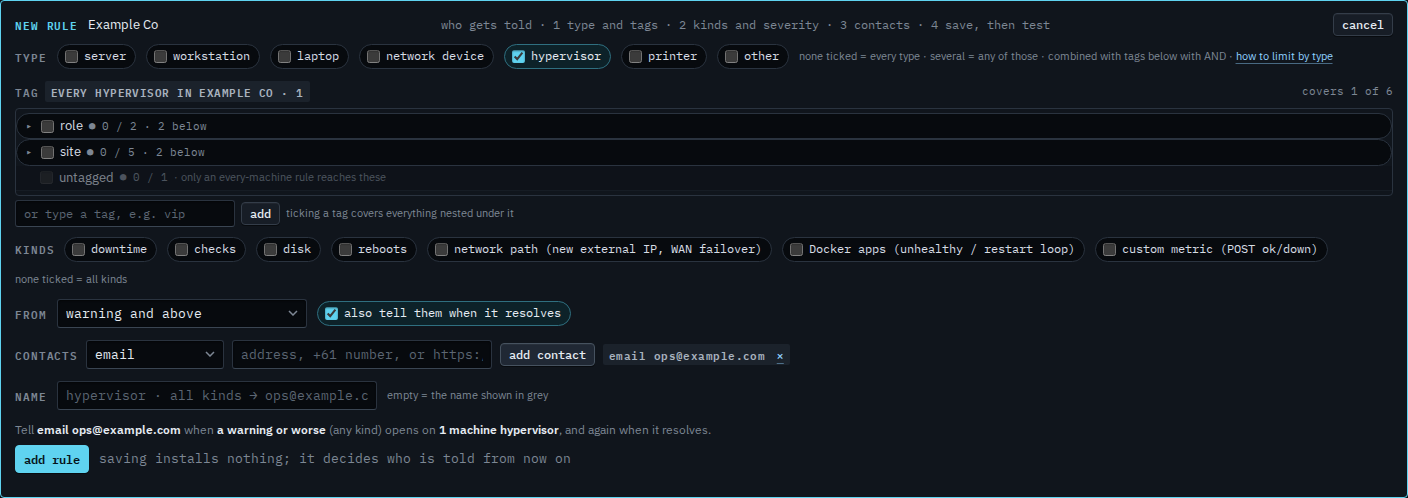
Add who is told, then read the sentence
Press add contact. The grey sentence reads: tell email ops@example.com when a warning or worse (any kind) opens on 1 machine hypervisor, and again when it resolves. Press add rule when that sentence is the one you want. This shot stops before that. Kinds left empty means every kind. A stopped guest is a separate choice on the host — Alert when a guest is stopped. Limit a report to hypervisors is the same tick on a report.
The same tick on a report is Limit a report to hypervisors. Guests on the host are Start or shut down a guest. Alerting when one guest is stopped is Alert when a guest is stopped. A network device is Limit an alert rule to network devices. The rest of the rule — kinds, severity, who is told — is Tell someone when a machine needs attention.