Let a customer open Patches.
My company › sub-companies, on the new login. Patches, shell and remote control are three separate ticks. BE AI is already on.
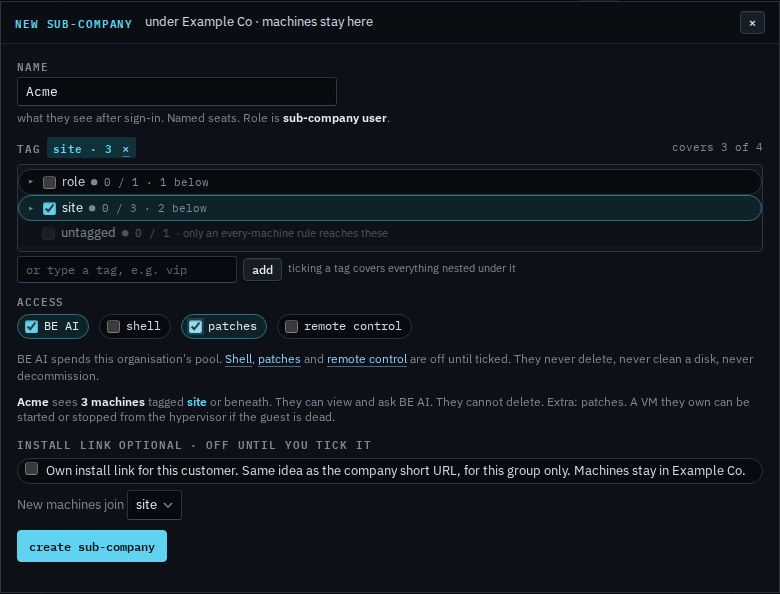
Tick patches on the new login
Open My company › sub-companies and press new sub-company. Name it, tick the group they should see, then tick patches. The line under the ticks says patches is extra. Shell and remote control stay clear until you tick those too. Create has not been pressed, so Acme does not exist yet. With this tick their people can open Patches for the machines in that group and scan them. Approving an update and scheduling the install stay with you. If BE AI proposes installing an update, this tick is what lets them approve that proposal. Let a customer manage their computers is this same dialog with patches left off.
Creating the login and inviting them is Let a customer manage their computers. A command on the machine is Let a customer open a shell. The screen is Let a customer take the screen. How a technician approves and schedules is Review missing updates and Schedule a patch job.