Add a custom metric.
A custom metric lives on the hub, not on the agent. A command on the machine — a speedtest — measures something and POSTs the number back. The fleet shows it, and warns when it crosses a threshold.
Open Health › custom metrics
Select the machine, then health › custom metrics. The list is only the machine heartbeat and the named metrics. Nothing is created until you press Add custom metric.
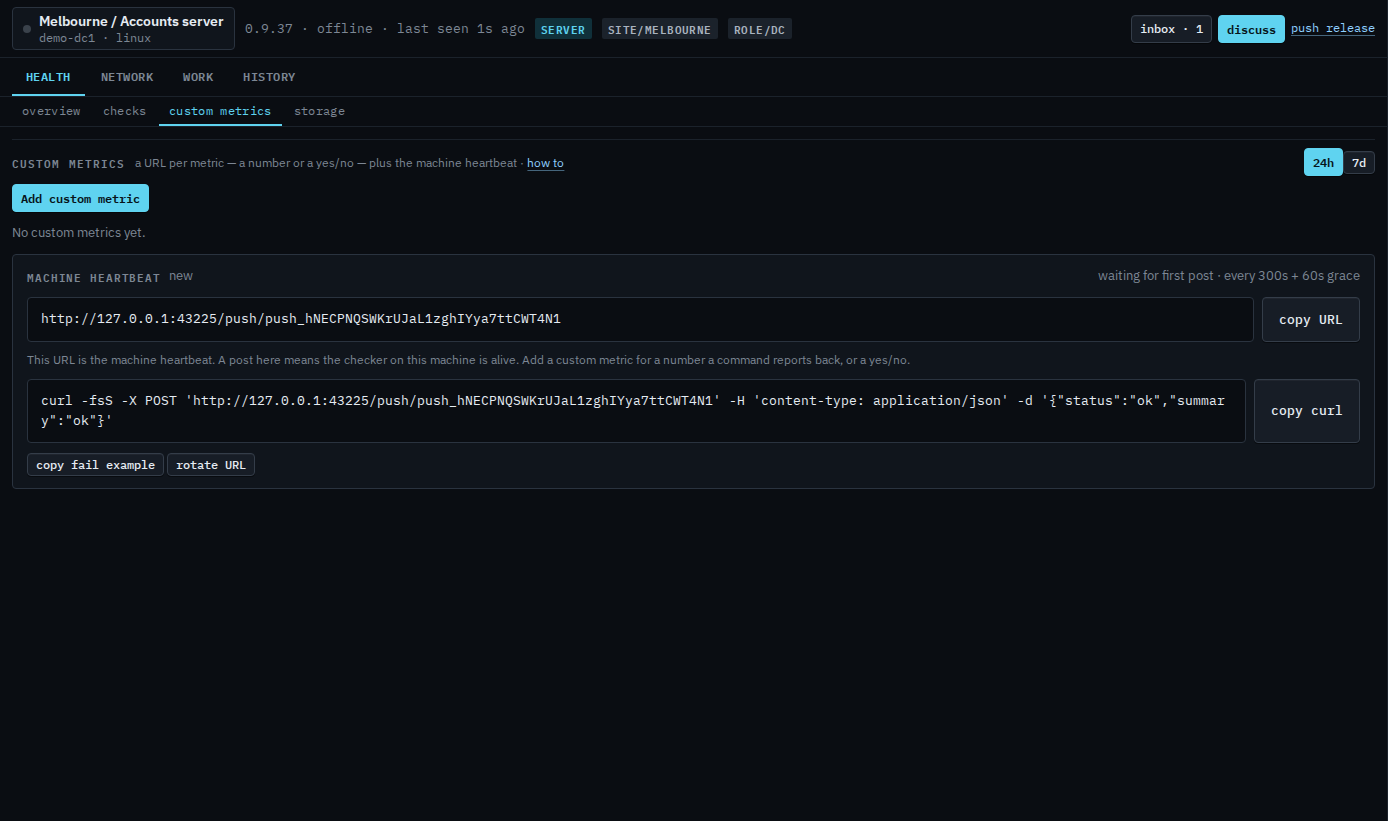
Name the number the command will send
Value type is Number or Yes / No. A number needs the JSON key the command will send, a label for the tile, a unit, and an optional time key for the graph. Download speed is one custom metric. Upload speed and latency are others, each with its own URL. Yes / No is its own custom metric too: Yes means Up or Down, and No is the other state.
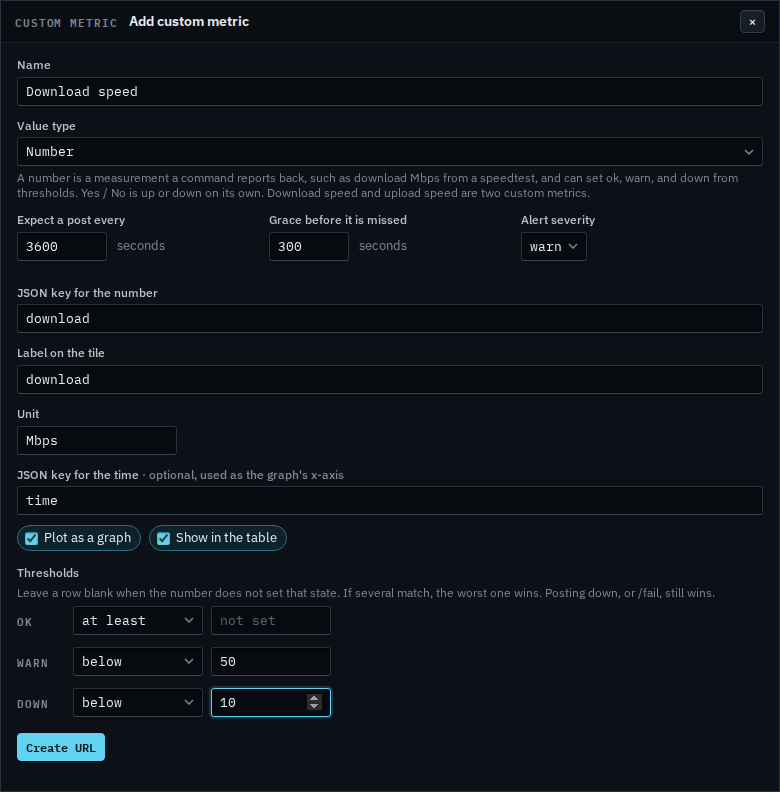
Warn when the speed drops
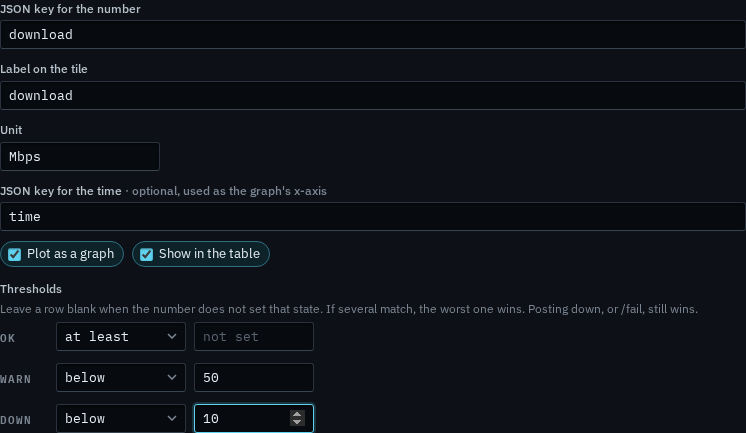
A speedtest is worse when the number is smaller, so the comparison is below, not at least. Leave a row blank when the number does not set that state. If several match, the worst one wins. Posting down, or the /fail URL, still wins over a healthy number.
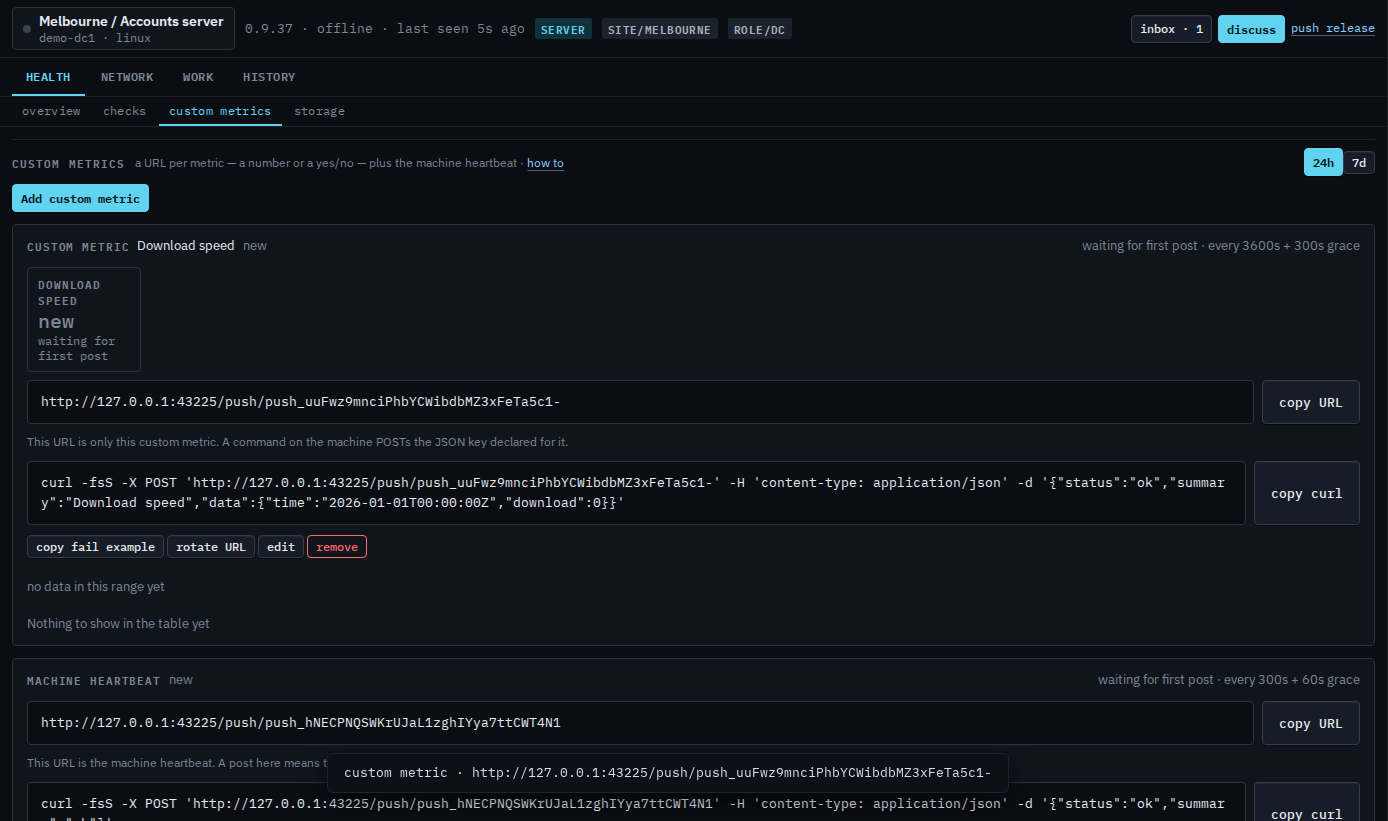
Create the URL and post the speedtest back
Create URL mints a URL that is only this metric. Copy it into a command on the machine. The Ookla speedtest CLI prints bandwidth in bytes per second, so megabits per second is that figure times 8, divided by 1,000,000. Pipe the result back: speedtest -f json --accept-license --accept-gdpr | jq -c '{status:"ok",data:{download:(.download.bandwidth*8/1000000|round),time:.timestamp}}' | curl -fsS -X POST 'PASTE_URL' -H 'content-type: application/json' -d @- Replace PASTE_URL with the URL on the card. The tile stays new until the first post. If nothing arrives within the hour plus the grace, it goes down and opens a custom-metric alert.
A status that is only yes or no is Add a yes or no custom metric. Rotate URL if it leaked — the old one answers 404. Remove deletes that metric. A customer login can copy a URL and cannot create, edit, rotate, or remove one — that page is Read custom metrics on your machine. Edit opens the same window. Changing the name or minting a new URL is Change or remove a custom metric. The confirm on remove is Remove a custom metric.