Install updates at a chosen time.
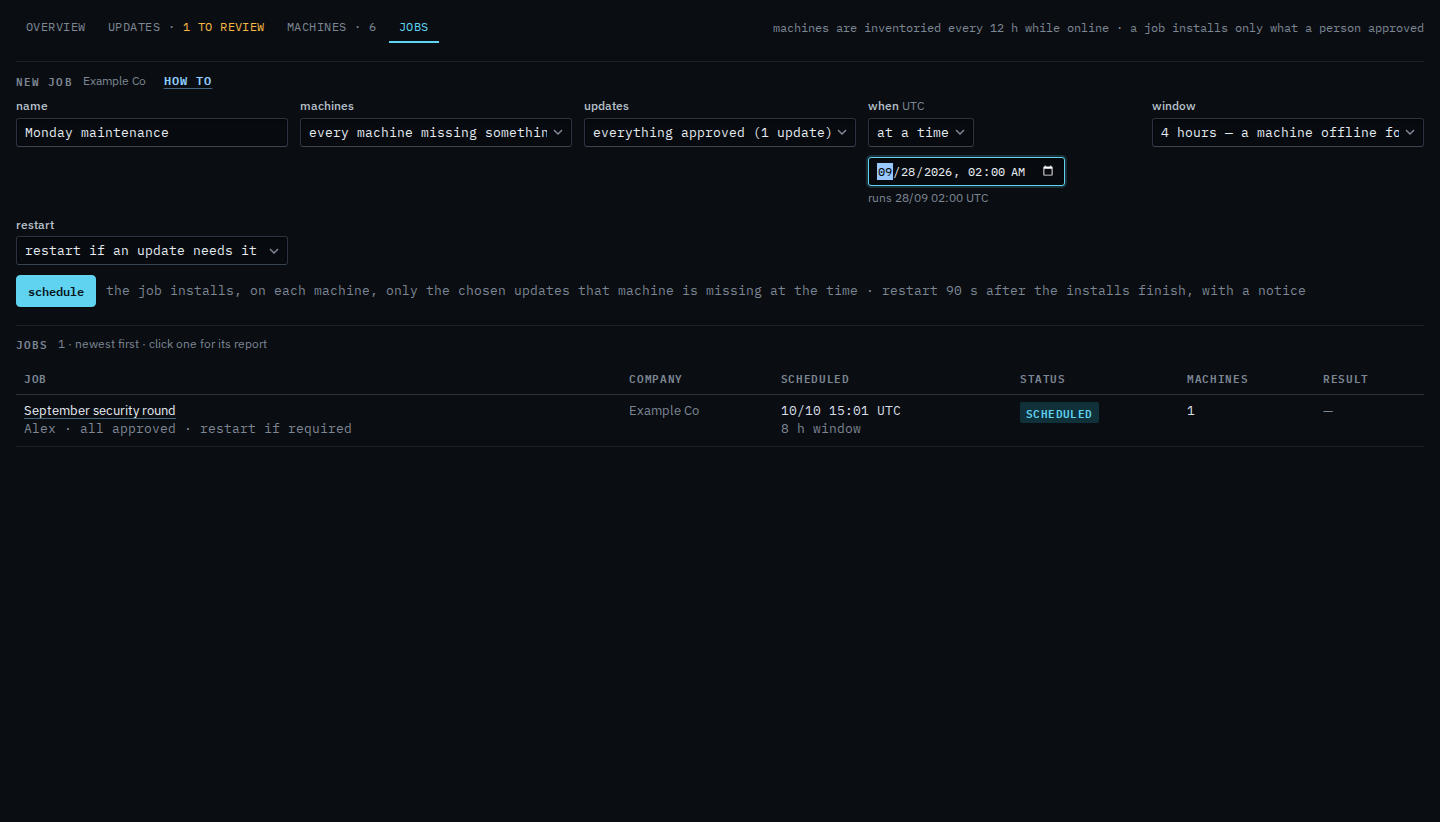
Patches › jobs. When sits on the new job. Now is the start. At a time opens a clock.
Leave when on now
Open Patches and pick jobs. Name the round. When is now. The line under it says installs as soon as you confirm. Updates stays on everything already approved: in Example Co that is the September cumulative update, not Chrome, which is still awaiting review. The window is four hours. Restart stays on if an update needs it. September security round is already in the jobs list. Schedule is the next click. This shot stops before that.
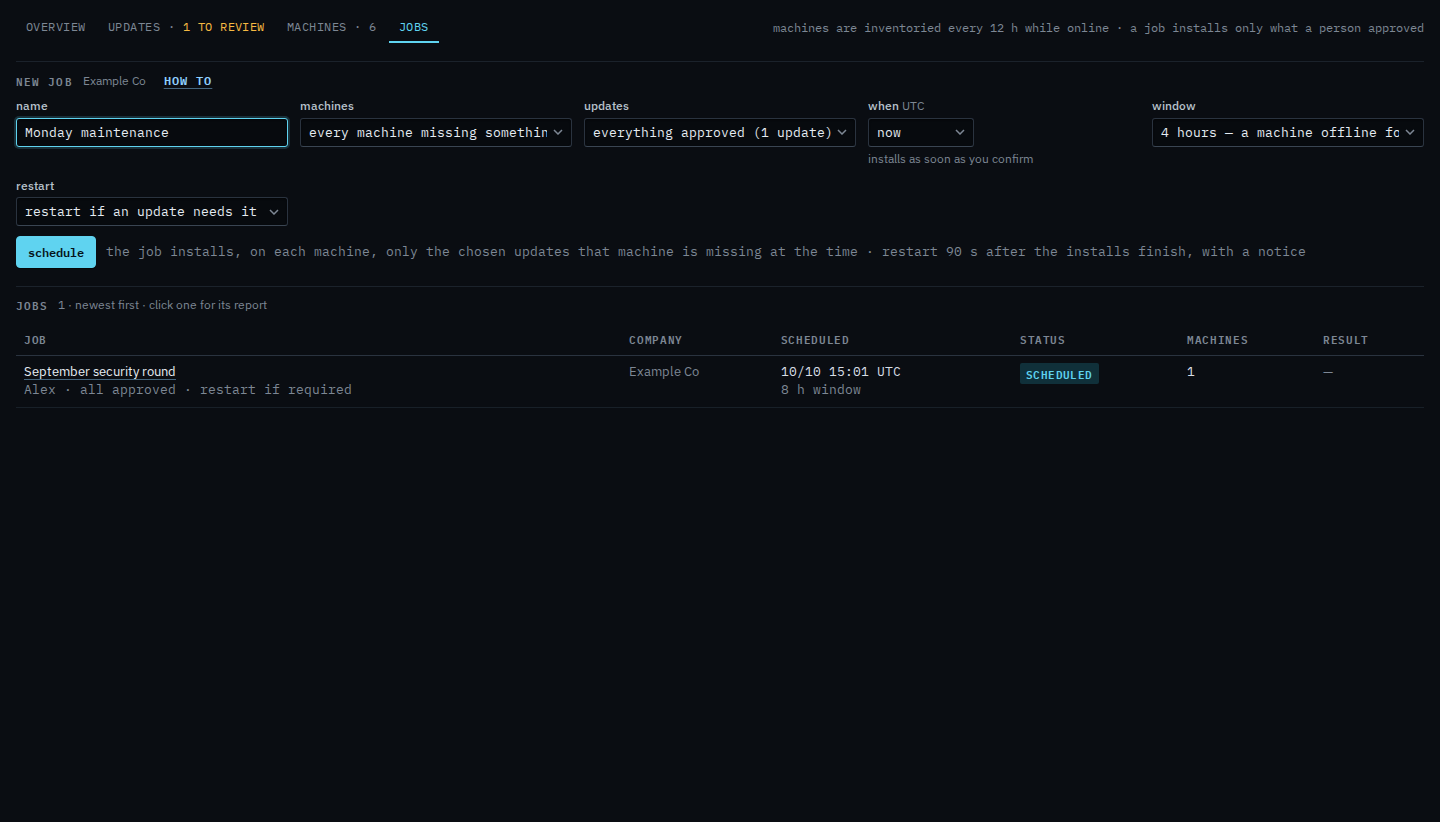
Set when to a time
Set when to at a time. The clock appears. 28 September at 02:00 is the Monday this round is named for. The line under the clock says when that is, in the timezone printed beside when. A time that has already passed rolls to the next day and the line says so. The window is still four hours from that start: a machine offline for the whole window is skipped. Schedule is still the next click. This shot stops before it, so nothing new is queued.
The rest of the form — machines, the window, and whether to restart — is Schedule a patch install. Ticked rows open this same form — Schedule only the updates you ticked. Stopping one before the window opens is Cancel a scheduled patch job.