Put an update back to awaiting review.
Patches › updates. Change the status filter to approved or declined, tick the row, then press back to review.
Open Patches › updates
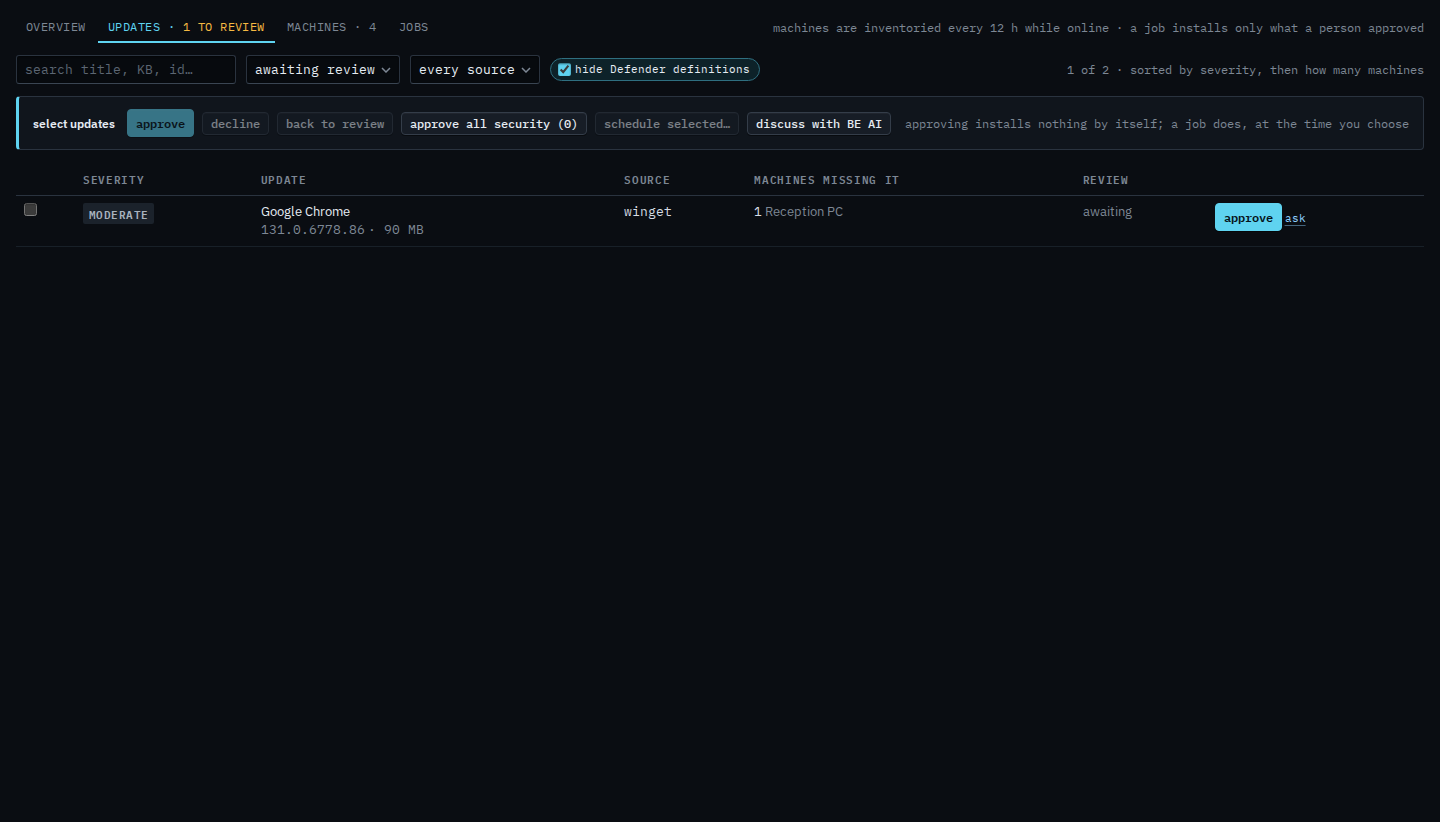
The status filter is awaiting review. Google Chrome on Reception PC is the row. The September cumulative update is already approved, so it is not in this list. Back to review stays off until an approved or declined row is ticked. Hide Defender definitions drops definition updates from the list. The source menu limits it to Windows Update or winget — See updates from one source. Search matches the title, the KB, or the id.
Tick the approved update
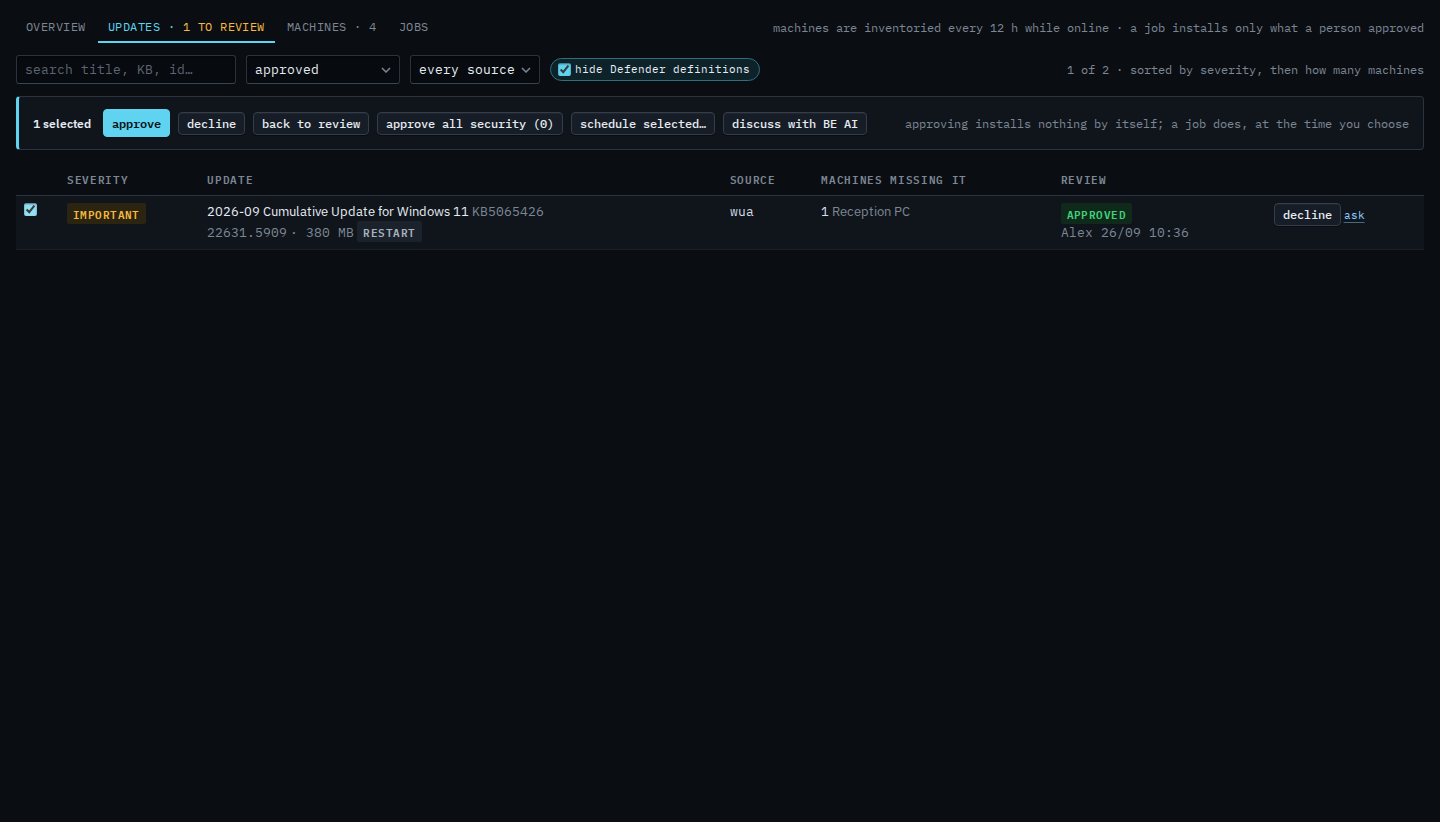
Set the status filter to approved. The September cumulative update on Reception PC is the row, approved by Alex. Tick it. The bar says 1 selected, and back to review switches on. Press it to clear the decision. The update returns to awaiting review, and a later job will not install it until someone approves it again. This shot stops before that press, so the approval stays.
Decline is the other way: Decline an update you will not install. Approving is Review and approve missing updates. A job is still what installs: Schedule a patch install.