Change or remove a custom metric.
Health › custom metrics, on a metric you already created. Creating one is a separate guide.
Open the metric you already created
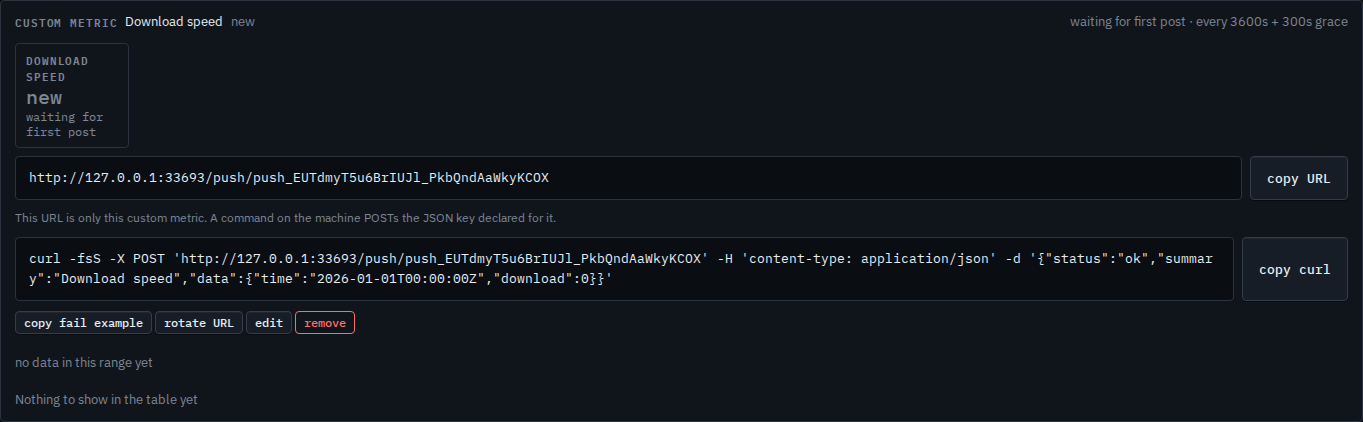
Select the machine, then health › custom metrics. Download speed is already a named metric, so the card has rotate URL, edit, and remove. The machine heartbeat above the list has rotate only. That URL means the checker is alive. This card's URL is only this number.
Edit opens the same window
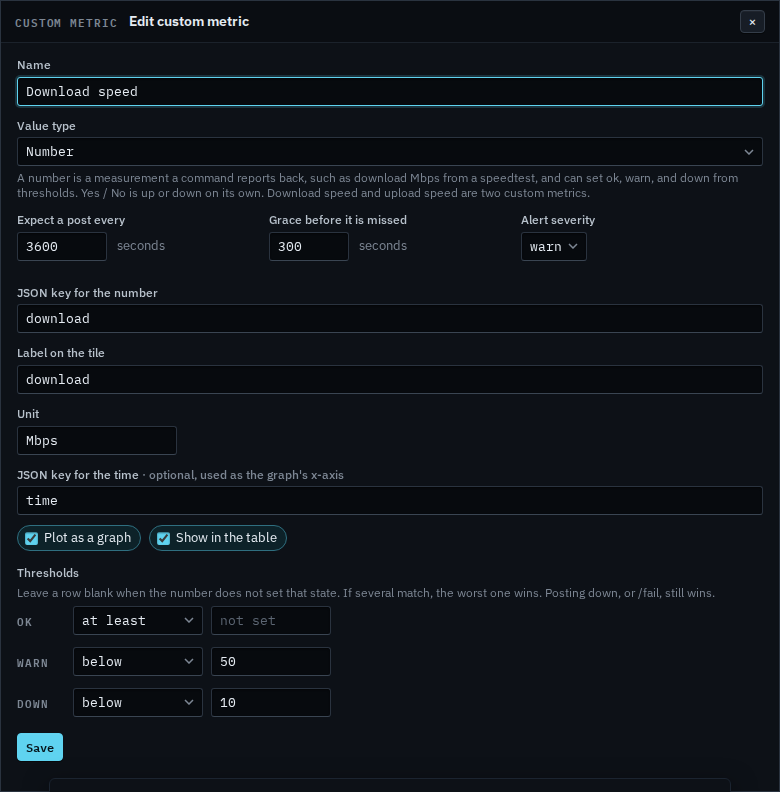
Edit opens the window titled Edit custom metric. The name, the JSON key, the unit, and the thresholds are the ones you saved. Change what you need, then press Save. Saving keeps this value type. This shot stops before Save, so the metric is unchanged. Close the window to drop the unsaved change.
Rotate asks you to confirm
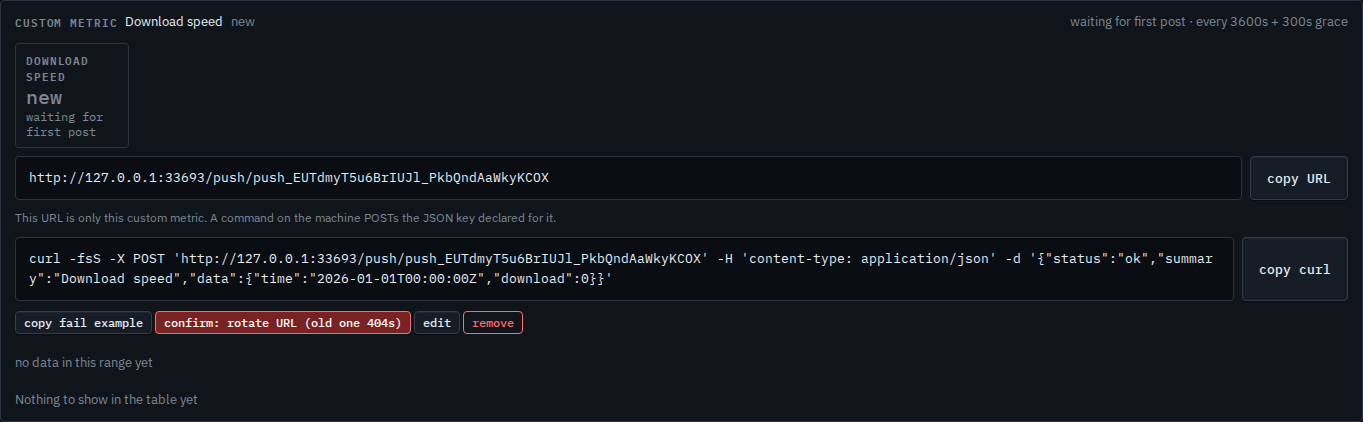
Press rotate URL once. The label turns red and says confirm: rotate URL (old one 404s). A second press within a few seconds mints a new URL. Anything still posting to the old one gets 404, so update the command on the machine before you confirm. Remove is the same two-step, on its own page — Remove a custom metric. Its label becomes confirm: remove, and the second press deletes the metric and its history. This shot stops on the first press of rotate, so the URL still works.
Creating the URL is Add a custom metric. The confirm on remove, on its own page, is Remove a custom metric. A customer login can copy a URL and cannot edit, rotate, or remove one.