Find a script by what it is for.
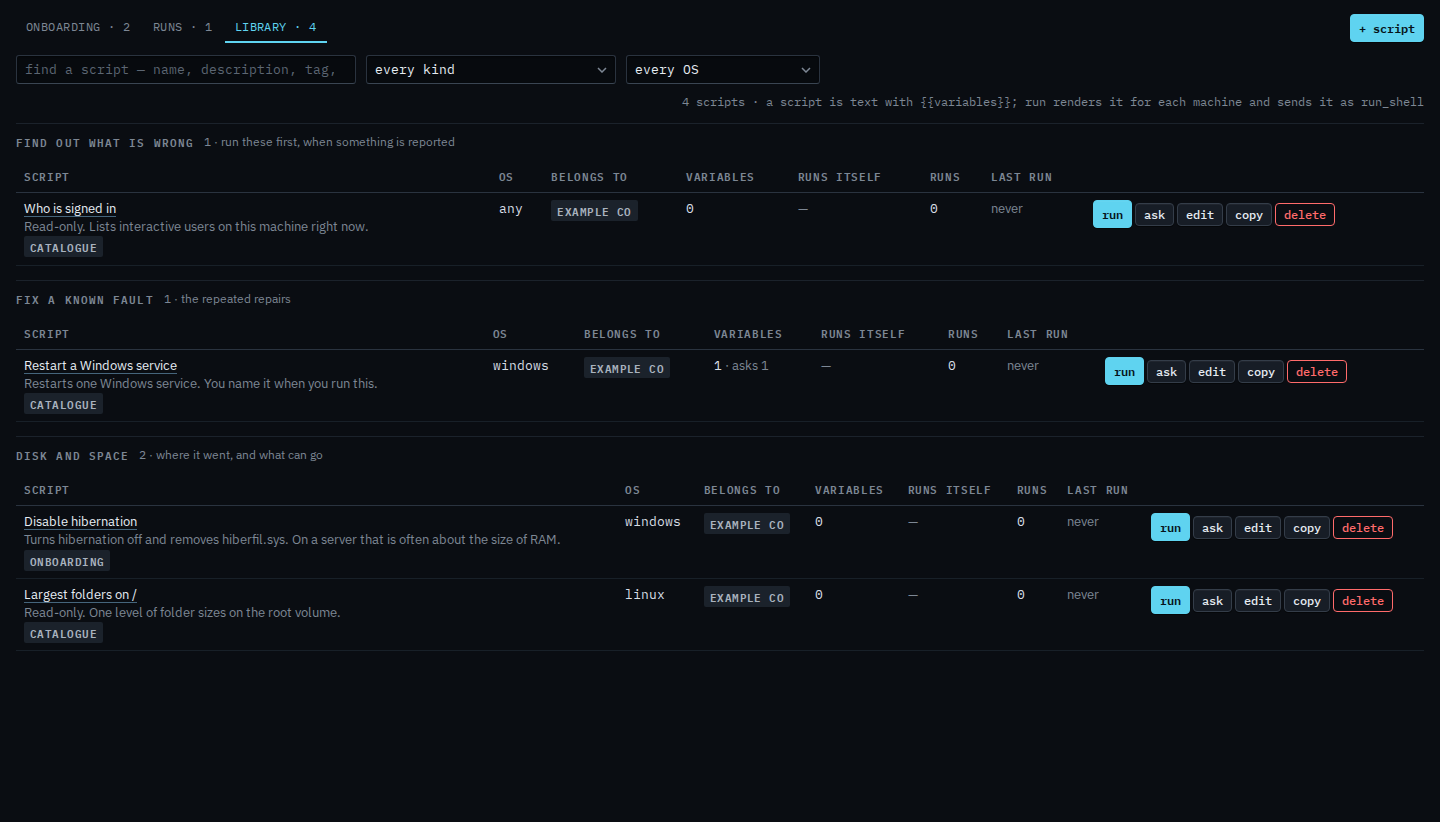
Scripts › library. Headings are what a script is for: find out what is wrong, fix a known fault, disk and space, and the rest. Empty kinds are not drawn.
Open Scripts › library
The kind menu says every kind and the operating-system menu says every OS. Each heading is a kind: Find out what is wrong, Fix a known fault, Disk and space. The count on the bar is every script in the company. Belongs to is Example Co when the script is for the whole company.
Set the kind to Disk and space
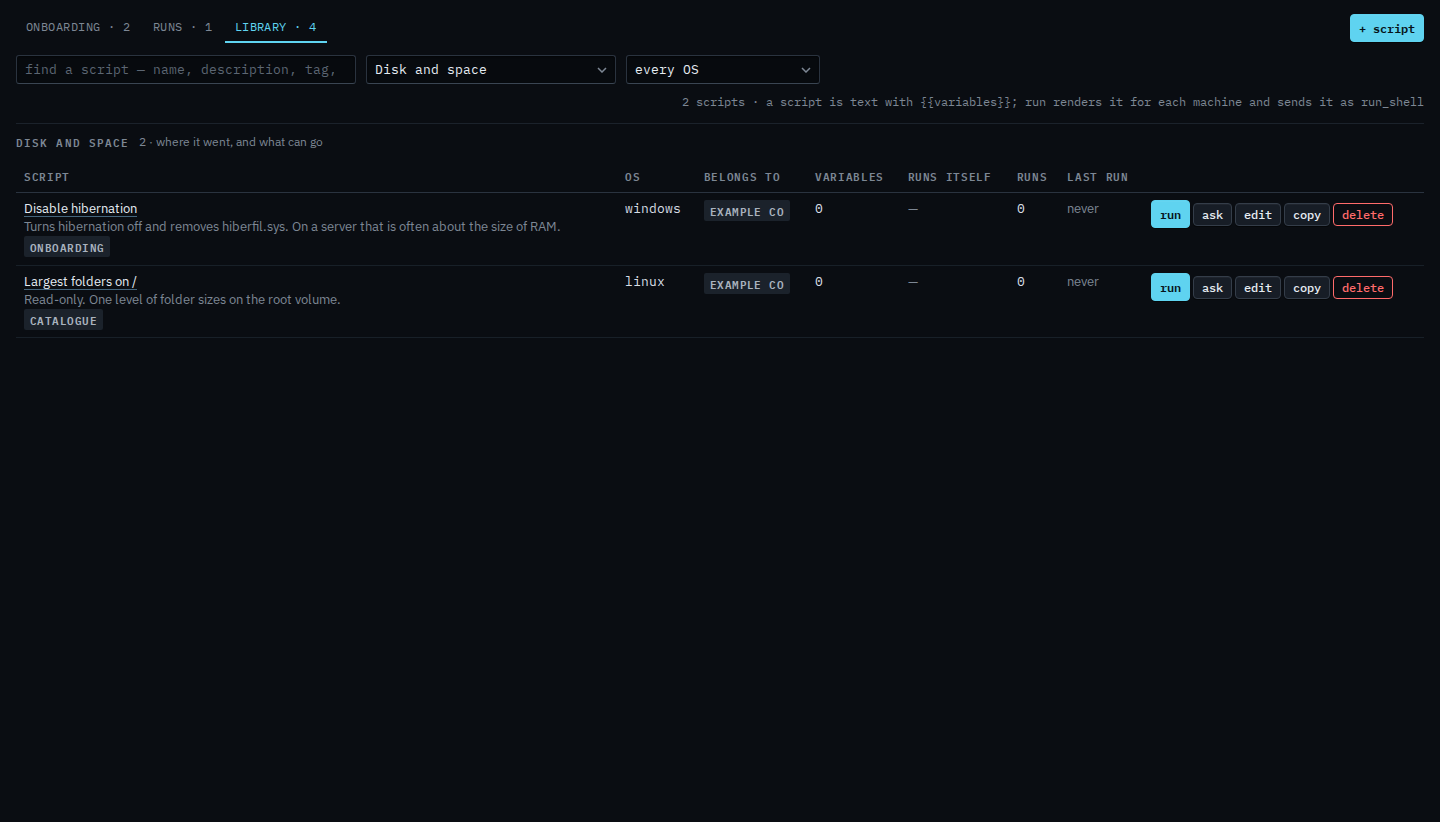
Set every kind to Disk and space. The other headings go away. Largest folders on / and Disable hibernation stay, because that is what they are for. Set every OS to Linux (sh) or Windows (PowerShell) when you only want one of them. A script marked any OS stays in an operating-system filter. Clear both menus to see the whole library again.
The operating-system menu is Show scripts for one operating system. The search box is Search the script library. Running one is Run a saved script. A script that should not appear for the whole company is Keep a script on one machine. Writing a new one is Add a script to the library.