Tell someone when a machine needs attention.
The hub raises alerts on its own. A rule is what turns that into a message to a person. Company admin or owner.
Open Alerts › rules
In the console: Alerts, then the rules tab. If this company has machines and no enabled rule, the page says nobody is told.
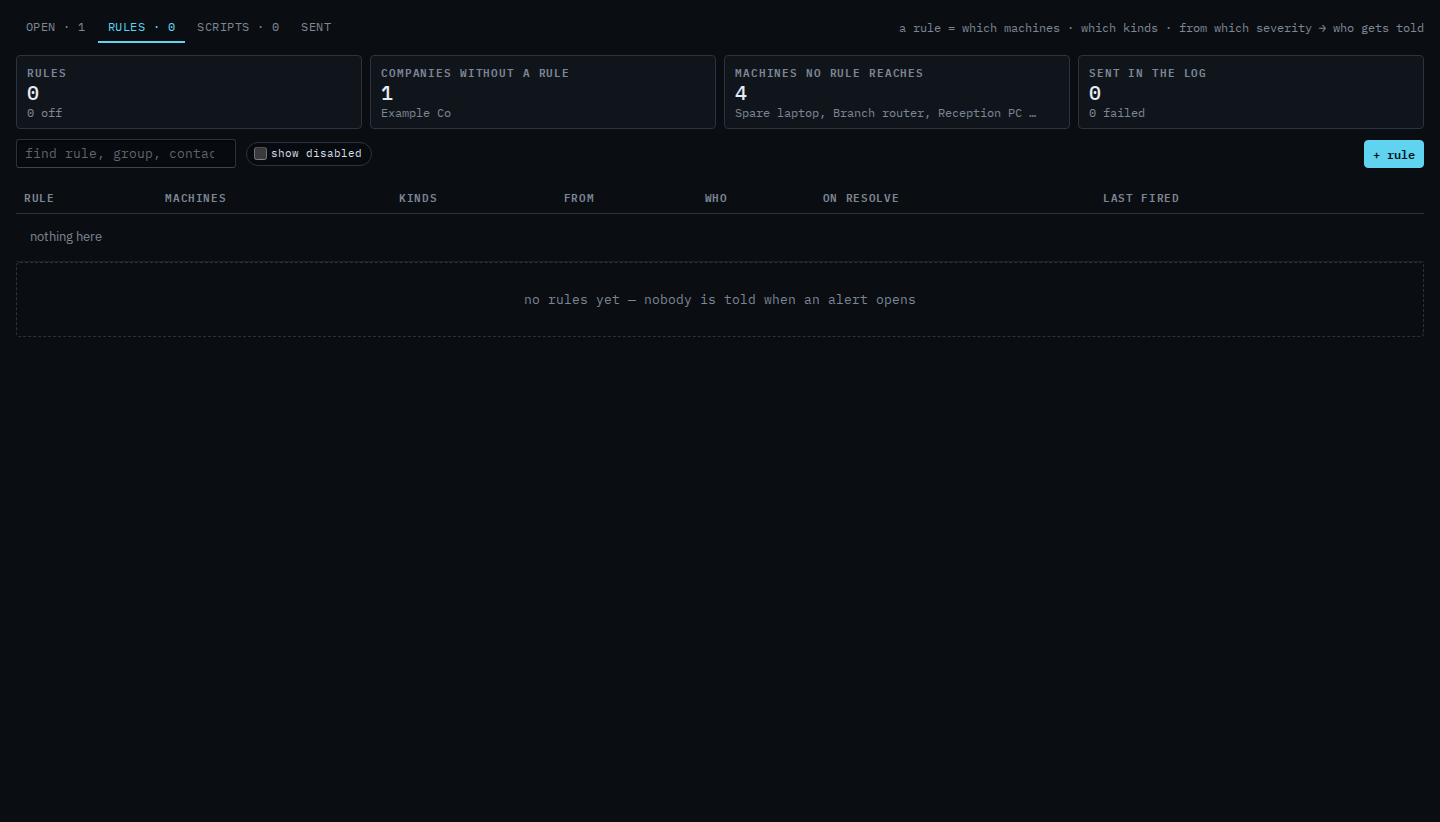
Press + rule
Leave type and tags empty to cover every machine in the company. Tick a type when the rule should cover servers only, or another type — Limit an alert rule to servers. Tick a tag when it should cover one site — Limit an alert rule to one site. Leave kinds empty for every kind (downtime, checks, disk, reboots, network path, Docker apps, custom metric). Severity defaults to warning and above — that skips notices such as a routine reboot.
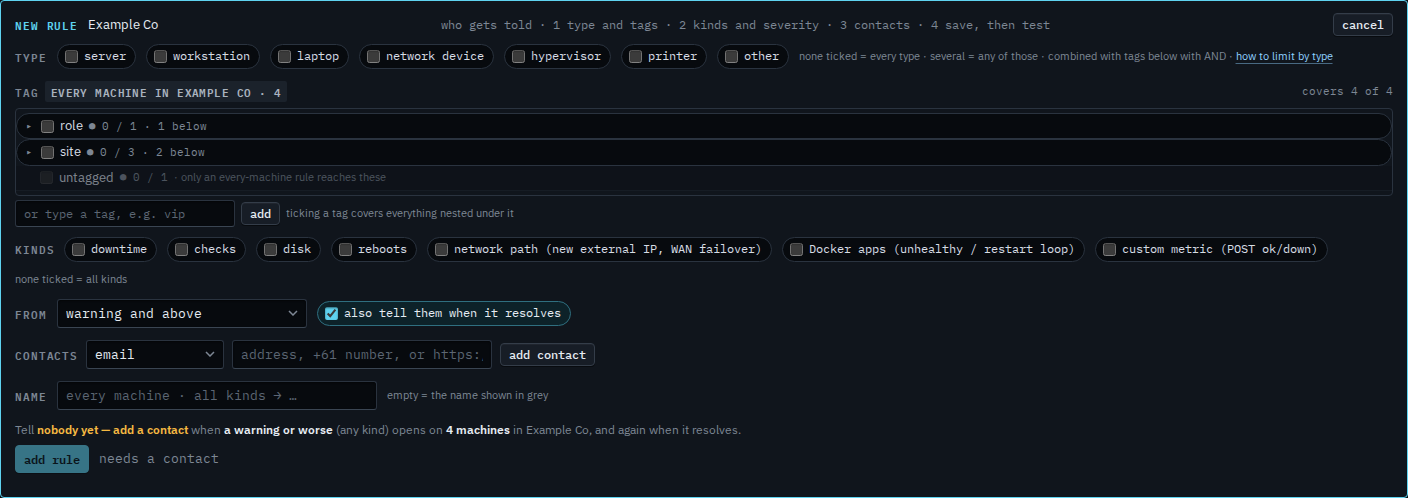
Add a contact
Email is the usual start. SMS and a phone call are the same contact row — Text or call when an alert opens. A webhook is for Slack, Teams, Discord, PagerDuty, or your own URL — Send an alert to Slack or Teams. Save stays disabled until there is at least one contact.
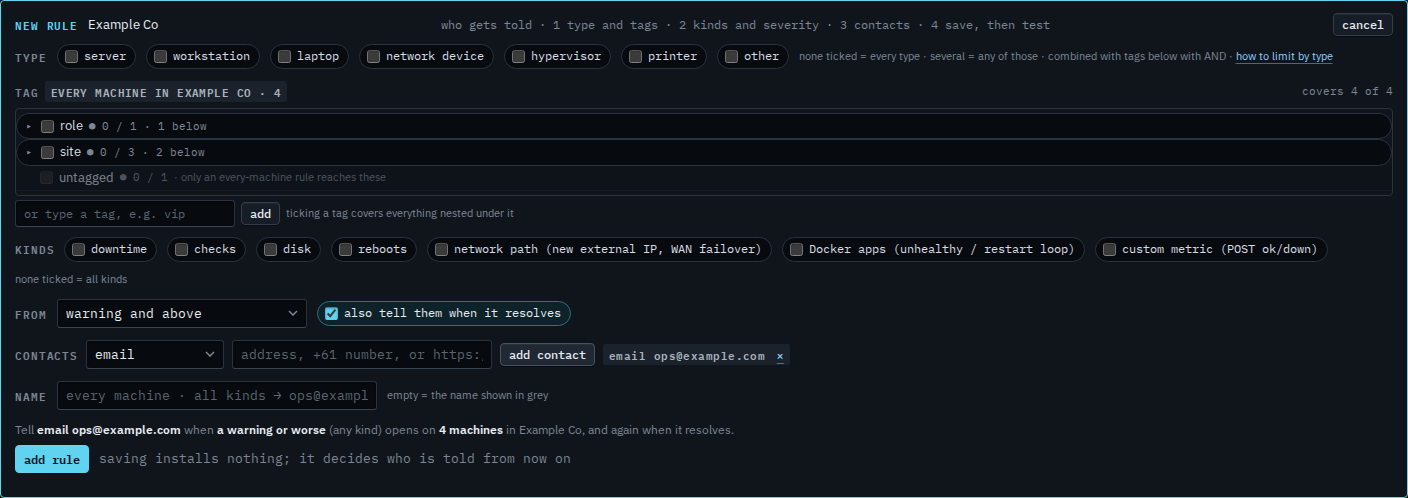
Add rule, then test
Press add rule. The list should show the new row as enabled. Press test on that row to send a synthetic message through the same contact — that is how you know the address is right before a real alert.
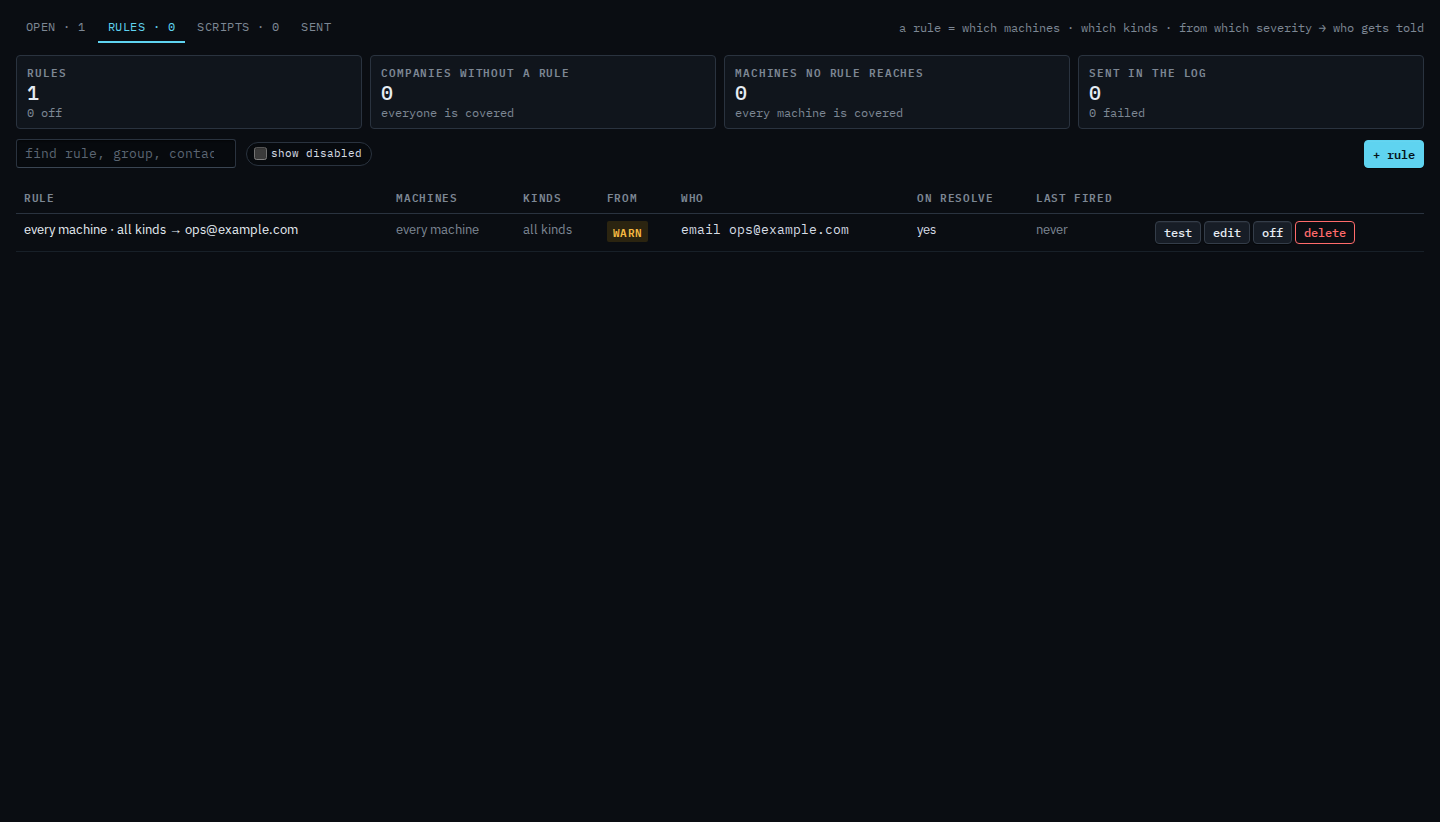
Two-step buttons (the label turns red and says “confirm: …”) are how BE Hub asks you to be sure. Click once to arm, again to do it. There is no browser popup. A second message when the alert clears is on by default — Tell them when an alert clears. Disk only is Only tell them about disk alerts. Opening a rule you already saved is Change an alert rule. Taking the rule off the list is Turn an alert rule off.