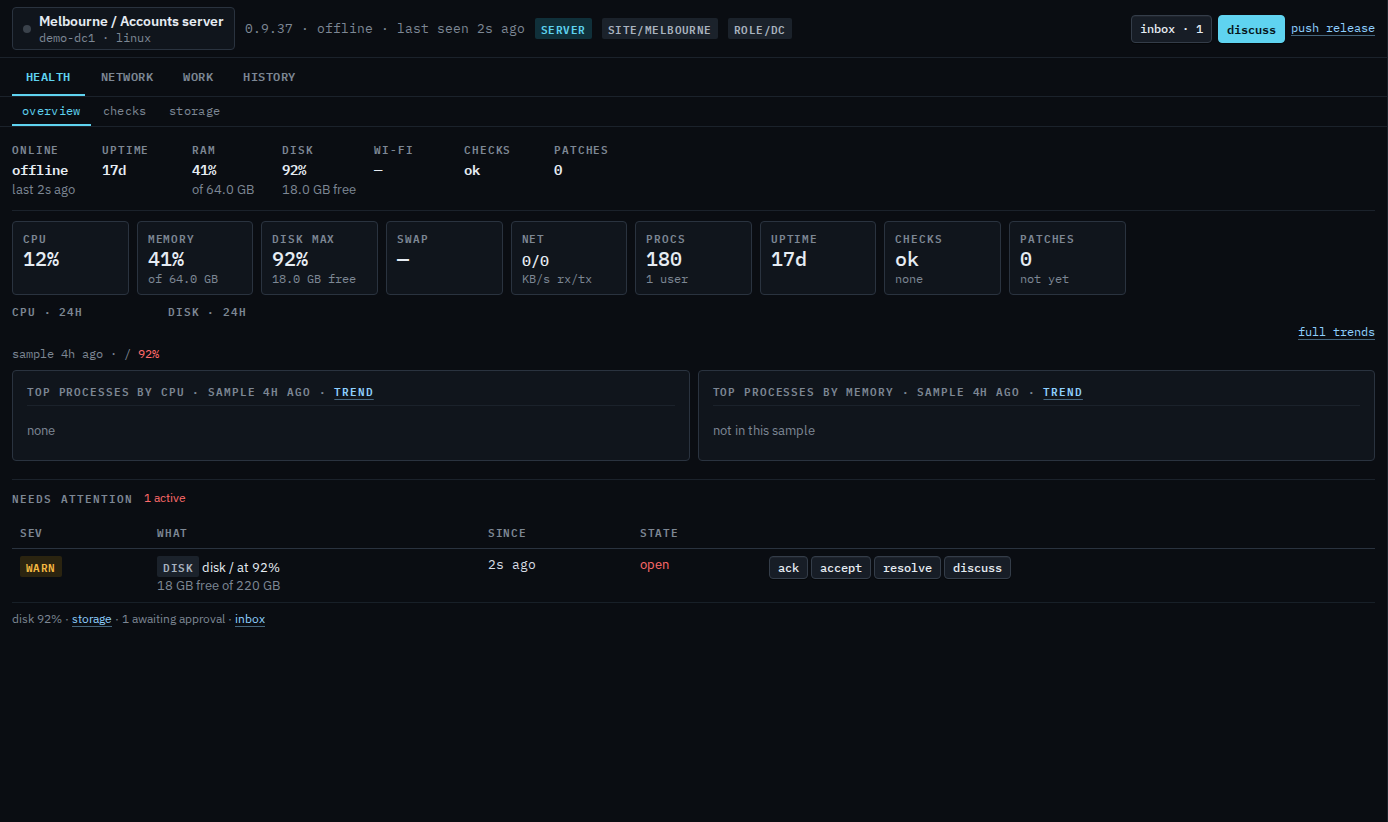
Find a machine and open it.
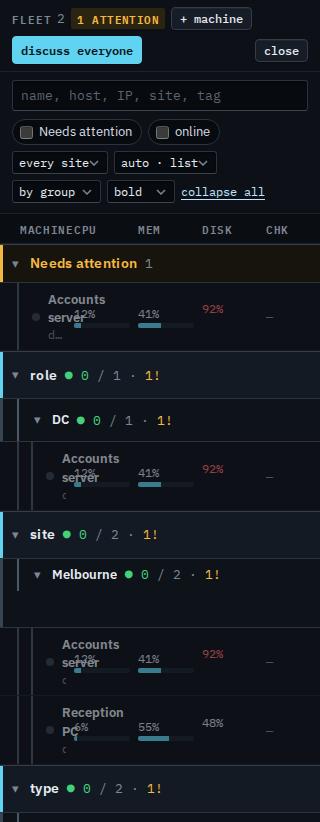
The fleet list is grouped (company, site, role…). Search, then click a name. The machine panel is the rest of the console for that box.
Open Fleet
Press Fleet. The list is a drawer from the left rail. Groups start collapsed — expand a site, or type in the find box (Search the fleet). A ring or amber reason means something needs attention (disk, a failing check, an open alert, or offline). A machine with an open critical alert sits in its own Critical section at the top, above Onboarding and Needs attention. Find a critical machine is that section on its own. A warning, such as this disk at 92%, stays under Needs attention.
Open the machine
Click the name. Overview is CPU, memory, disk, checks, and anything that currently needs attention. Workspaces along the top (health, network, work, history) hold the rest of the tabs.