Read one machine's events.
The fleet Events page is every machine. This tab is the one you have open, with the same names and a search over the summary.
Open History › events
Open the machine, then history › events. Newest first. Accounts server shows the disk warning, the external-address change, and the hello from when it connected. The range defaults to the last 7 days. Severity and the summary search narrow what is already loaded. Read the event stream is the same records for the whole company.
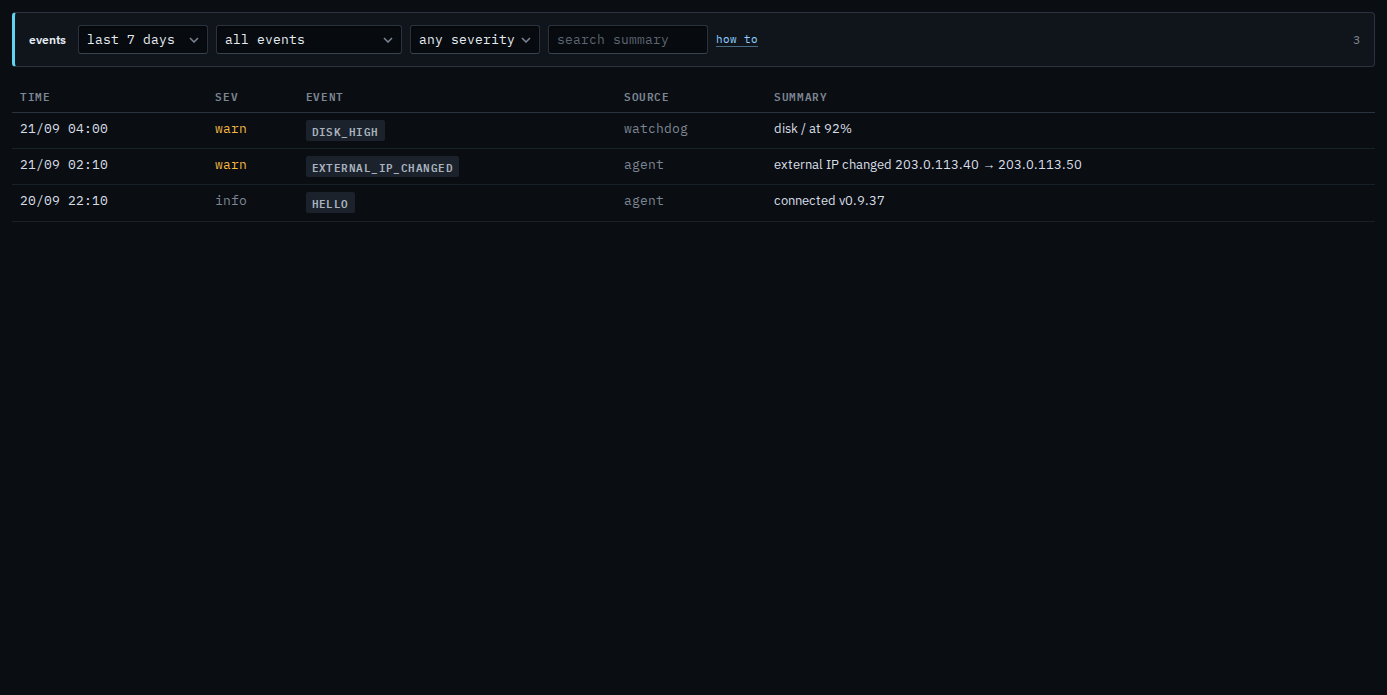
Filter to one event name
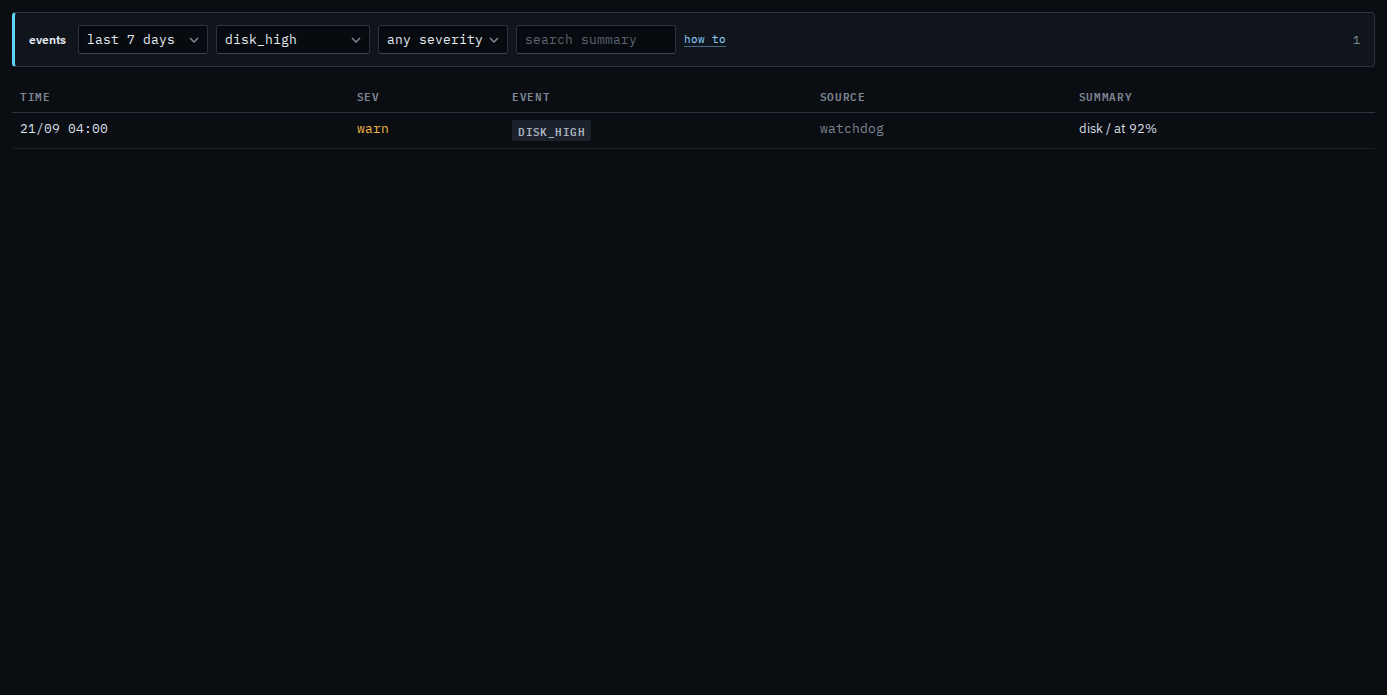
The event menu is the names this hub already knows, plus any other name this machine has recorded in the range. Pick disk_high and the hello and the address change drop out. Everything in the range menu is the full history the hub still keeps for this machine, capped at 500 rows — narrow the range if you hit that.
A sub-company user opens the same tab under history. What that login sees is Read events on one of your machines. Audit is not in their nav. A word in the summary is Search one machine's events. The range menu is Show one machine's events from the last day. Click a row for the raw record. Warnings only are Show only warnings on one machine. The fleet-wide name menu is Show only one kind of event. An address change on this tab is the same fact as See when the external address changed.