Choose how long a patch job keeps trying.
Patches › jobs. Window is how long the hub keeps trying after the job starts. A machine offline for the whole window is skipped, and the report says so.
Leave the window at four hours
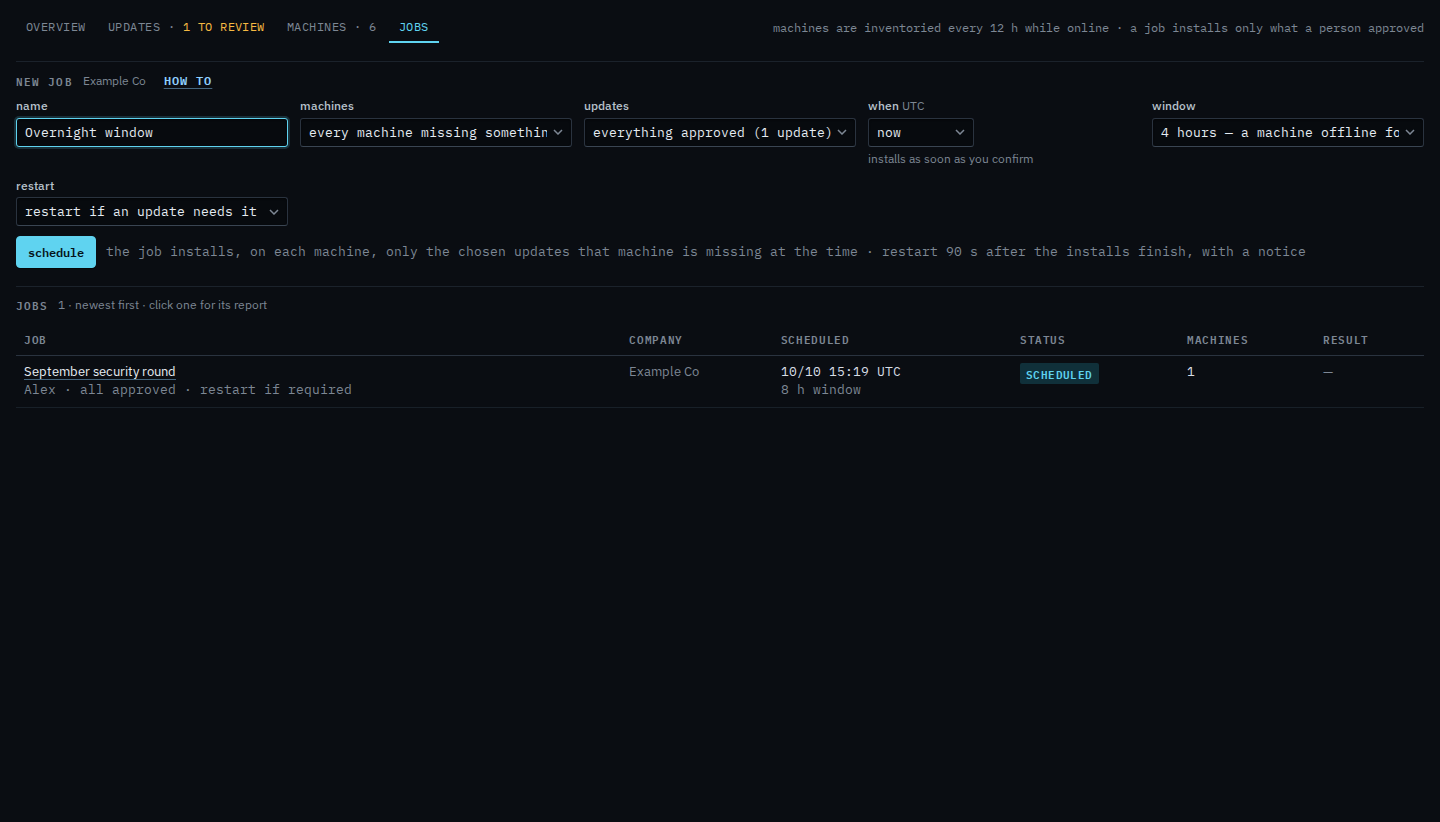
Open Patches and pick jobs. Name the round. Window starts at 4 hours. A machine that is offline for those four hours is skipped. It is not installed the next morning. One hour and two hours are shorter. Eight hours covers an evening. A day and three days are longer. Updates stays on everything already approved: the September cumulative update, not Chrome, which is still awaiting review. September security round is already in the jobs list. Schedule is the next click. This shot stops before that.
Set the window to a day
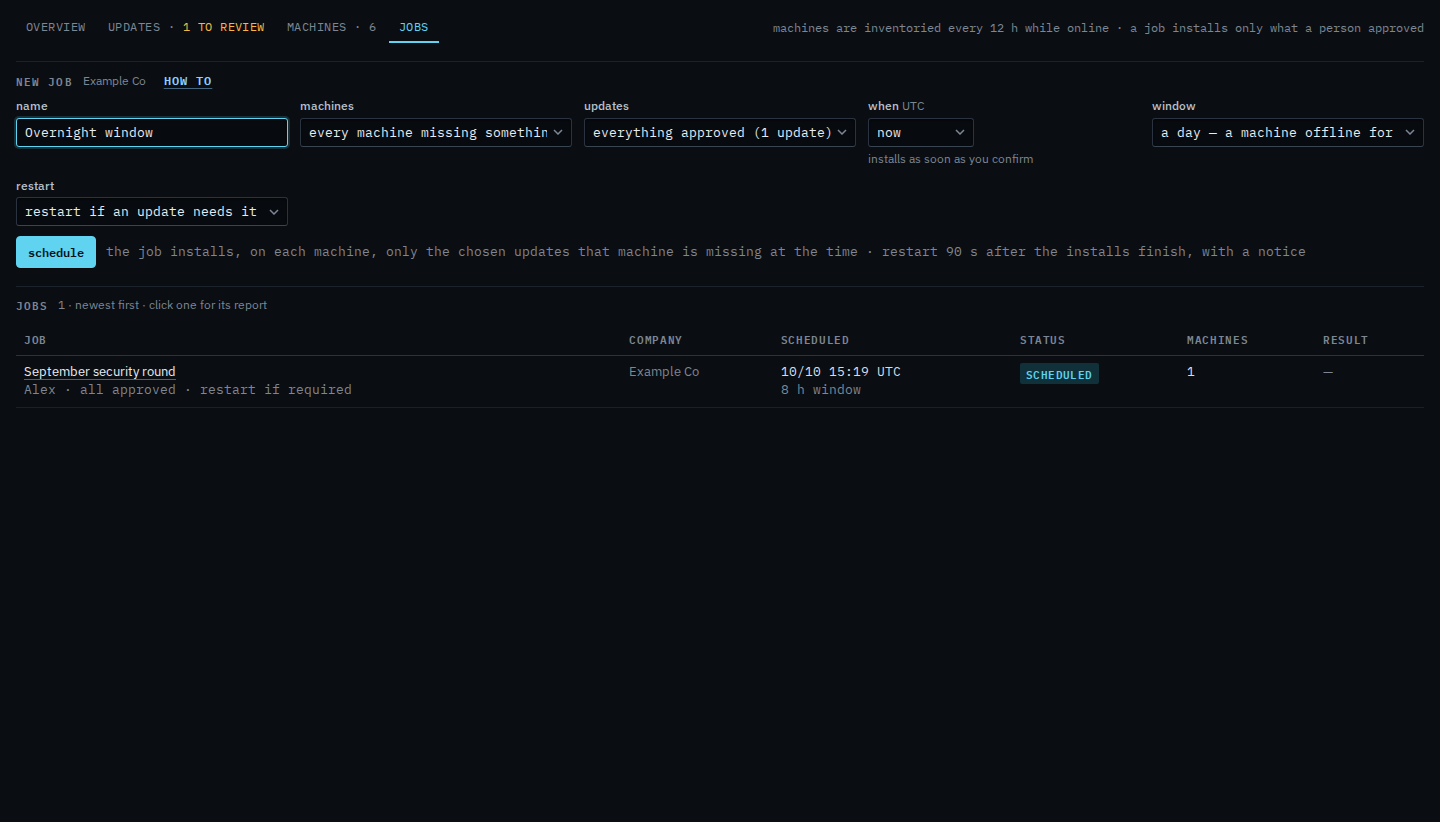
Set window to a day. The hub keeps trying for 24 hours after the job starts. A laptop that is off overnight is still installed when it comes back inside that day. A machine that stays off for the whole day is skipped, and the report says so. Three days is the longest. Schedule is still the next click. This shot stops before it, so nothing new is queued.
When the window opens is Install updates at a chosen time. Never restarting is Leave the machine running after updates. One machine is Install updates on one machine. The rest of the form is Schedule a patch install.