Schedule a patch install.
Approving an update does not install it. Patches › jobs is the step that does. A machine offline for the whole window is skipped and the report says so.
Open Patches and pick jobs
Name the round so the report is recognisable later. Machines is every machine in view, one group, or one machine. Updates defaults to everything already approved. In Example Co that is the September cumulative update on Reception PC. Chrome is still awaiting review, so this job will not install it. Approve or decline on the updates tab first. When is now, or a time in your timezone. Window is how long the hub keeps trying. Eight hours means a laptop that is off all evening is skipped, not installed the next morning. Restart is never, if an update needs it, or always. Schedule is the next click. This shot stops before that. See what the patch window is missing is the same inventory as a report.
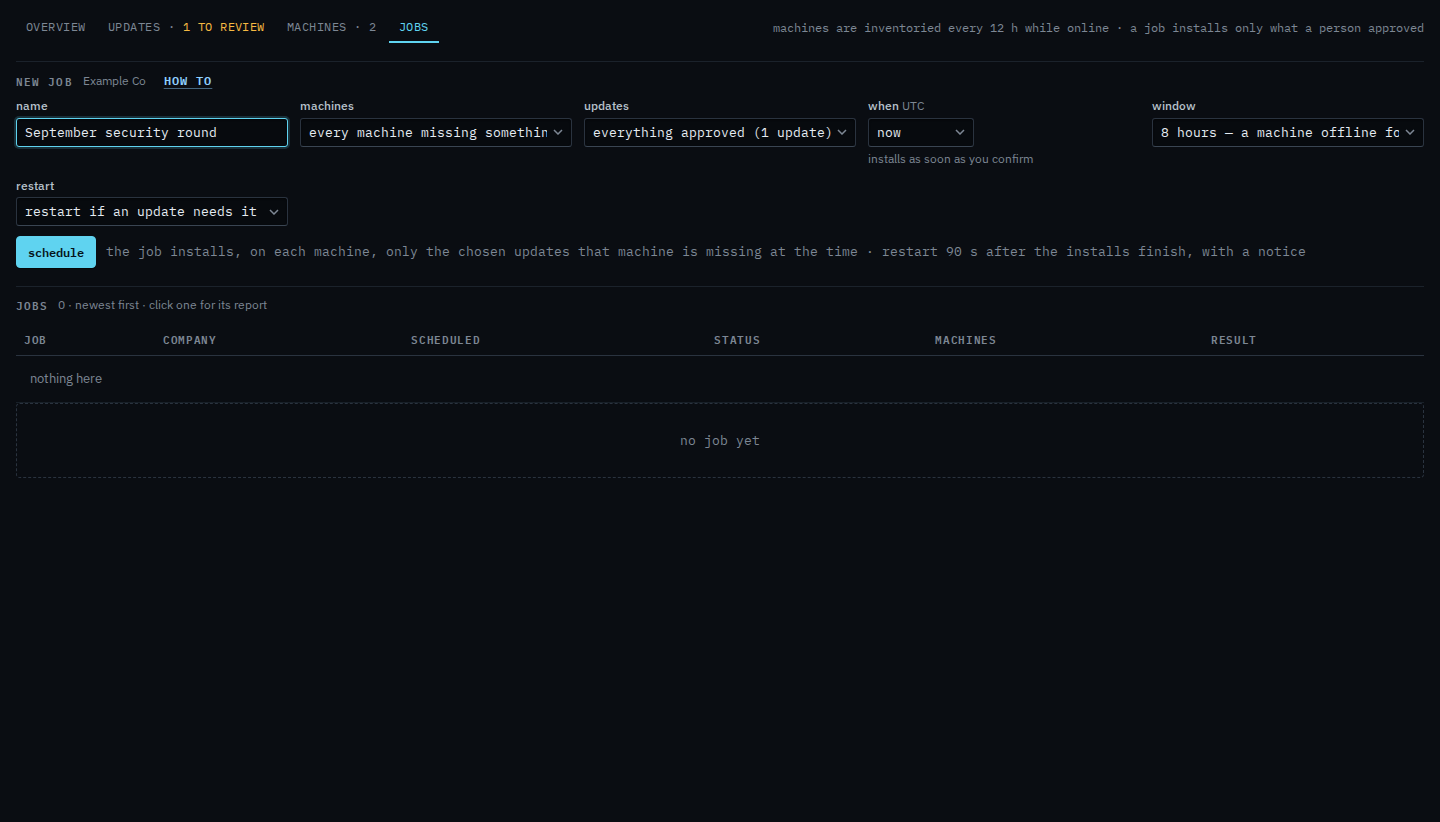
FreeBSD inventories only — a job will not install on a firewall. Drivers stay out of Windows Software updates. Install updates at a chosen time is the when menu on this form. Leave the machine running after updates is the restart menu. Install updates on one machine is the machines menu. Choose how long a patch job keeps trying is the window menu. Schedule only the updates you ticked opens this same form for those rows. From one connected machine, Install the approved updates on this machine opens this form already filled for that box. Cancel a scheduled patch job is the same two-step confirm, before the window opens or while it is still running.