Send an alert to Slack or Teams.
Email is the usual start. A webhook is the same rule, aimed at a channel the team already watches. Company admin or owner.
Choose webhook, then Slack
Open Alerts › rules and press + rule. Under contacts, change the channel from email to webhook / API. Format is how the receiver wants the body: Slack incoming webhook, Microsoft Teams, Discord, PagerDuty, generic JSON, or a custom template. Paste the incoming webhook URL. A signing secret is optional; with one, each delivery adds a timestamp and an HMAC the receiver can check. Extra headers are for a bearer token your system already uses. Tell someone when a machine needs attention is the rest of the rule: which machines, which kinds, which severity.
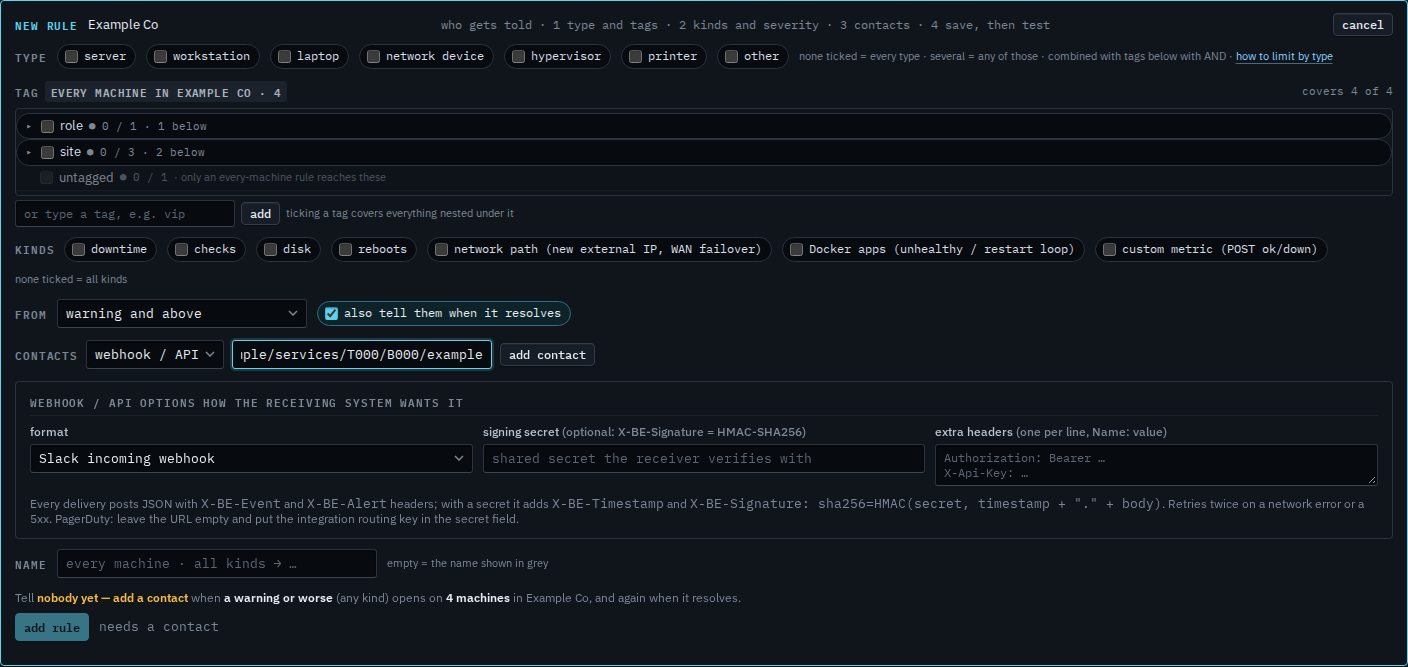
Add the contact, then save
Press add contact. The chip names the format and the URL. Save stays off until that chip exists. Press add rule, then test on the row so a synthetic message lands in the channel before a real alert does. What was delivered, and to whom, is See where an alert was sent.
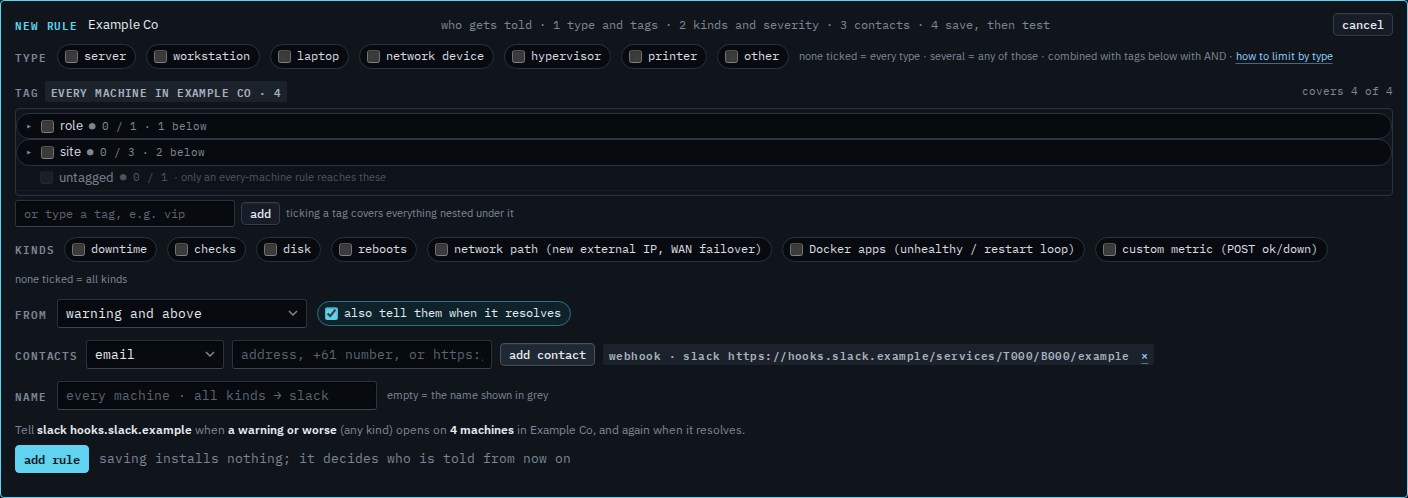
PagerDuty uses an empty URL and the integration routing key in the secret field. A body you write yourself is Send an alert as your own JSON. Test the rule after you save it, the same way as an email contact.