Only tell them about a failing check.
Alerts › rules. Kinds sit under the tags. Checks is one tick. None ticked still means every kind.
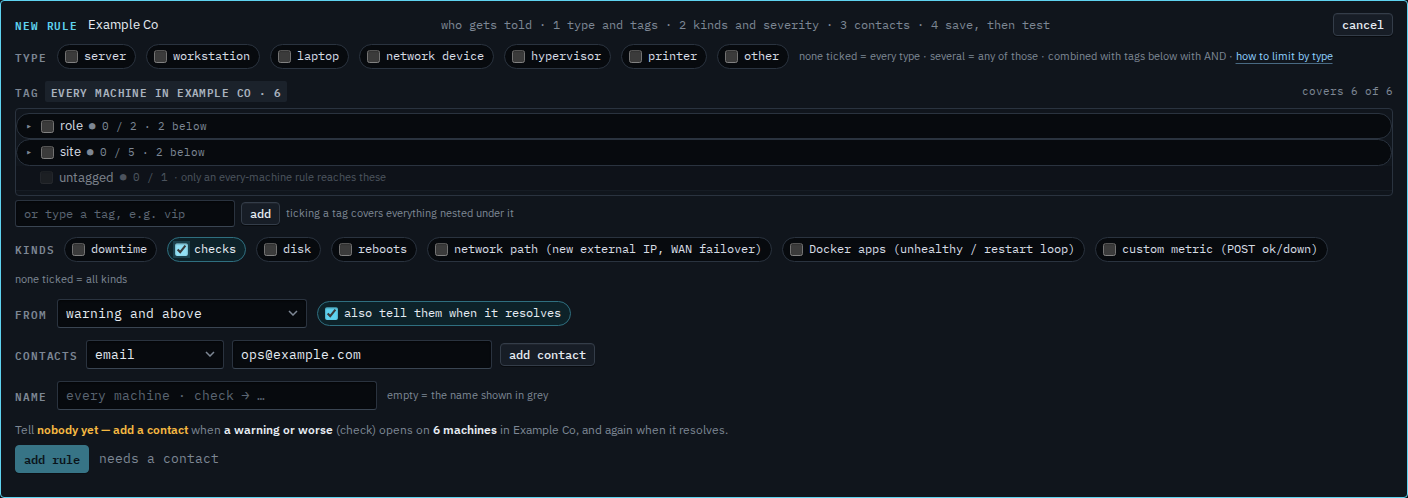
Tick checks
Open Alerts › rules and press + rule. Under kinds, tick checks and leave the others clear. That kind is a check on the machine that has failed. None ticked still means every kind. The address is typed and not added yet. Type and tags left empty cover every machine.
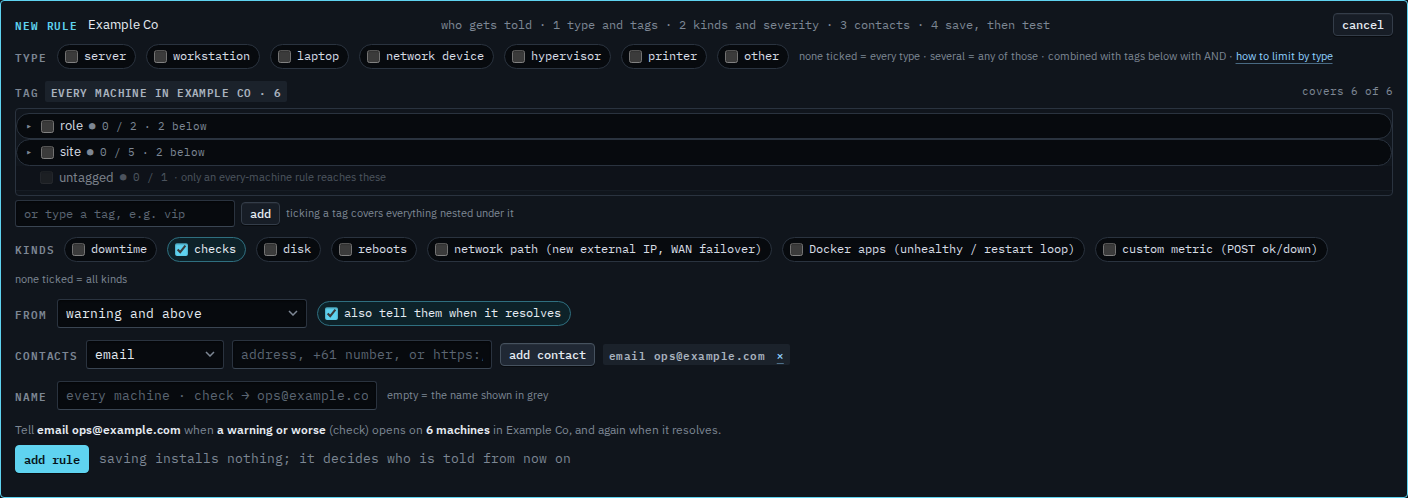
Read the sentence, then add the rule
Press add contact. The grey sentence reads: tell email ops@example.com when a warning or worse (check) opens on 6 machines in Example Co, and again when it resolves. Press add rule when that sentence is the one you want. This shot stops before that. A later edit of the same rule is Change an alert rule.
A rule for every kind is Tell someone when a machine needs attention. Disk only is Only tell them about disk alerts. Downtime only is Only tell them about downtime. A reboot is Only tell them about a reboot. A custom metric that posts down is Only tell them about a custom metric. Adding the check itself is Add a disk or ping check.